How to Animate Family Photos with AI
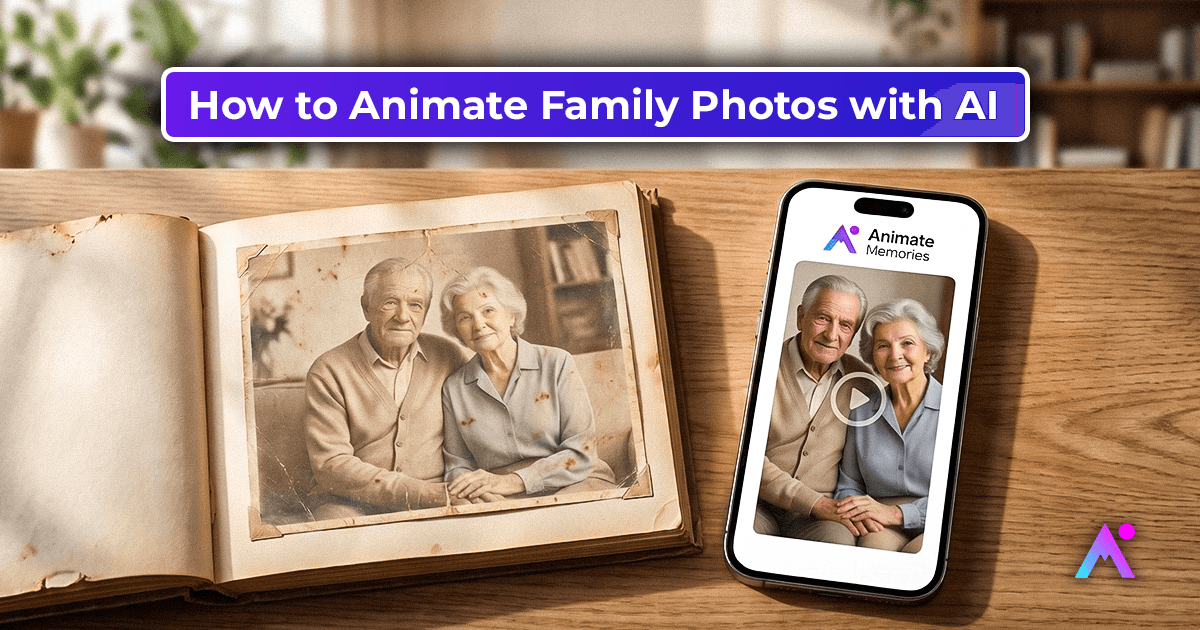
Family photos capture moments that become more meaningful with time. A childhood picture, a wedding portrait, or a photograph of grandparents can bring back memories of people, places, and experiences that have shaped a family’s story. But what if you could experience those familiar photographs in a new way?
With AI photo animation, you can turn a still family photograph into a short video featuring subtle movements and expressions. Whether you want to animate a recent family portrait or bring an old photograph out of an album, it is an easy way to bring family photos to life.
You do not need professional video-editing skills to get started. By choosing a suitable photograph, using a clear animation prompt, and reviewing the generated result, you can create a moving version of a cherished family memory.
Upload a family photo to Animate Memories, choose Animate, and create a 5 to 10 second video in a few minutes. For natural-looking results, use a clear photo, write a simple movement prompt, and keep the animation subtle. Here’s how to animate family photos step by step.
If you are wondering how to animate old family photos with AI, the process is easier than you might think. AI photo animation tools can transform still family portraits into short videos with gentle movements, such as blinking, smiling, and subtle head movements. This gives you a new way to revisit cherished family moments.
What Does It Mean to Animate Family Photos?
Animating family photos means using artificial intelligence to generate movement from a still photograph. Instead of recording a new video, an AI animation tool analyzes the visual information in an image and creates a short animated sequence.
For example, you might animate a portrait of your grandparents to create a short video, give a childhood photograph a gentle sense of movement, or turn a family portrait into a memorable clip for a birthday celebration.
AI animation does not recover the actual movements that happened when the original photograph was taken. It generates a visual interpretation based on the image and the instructions you provide. Keeping this distinction in mind is especially important when working with historical family photographs.
If you want to bring your old family photos to life, learn how to animate an old photo is a great place to start.
Why Animate Family Photos?
Family photographs already hold personal meaning. Animation offers another way to experience, organize, and share those memories.
1. Revisit Cherished Family Memories
Old photographs often remain stored in albums, drawers, or digital folders for years. Animating a selected picture gives you an opportunity to revisit it in a different format.
A subtle movement can make a familiar portrait feel more engaging while keeping the photograph itself at the center of the experience.
2. Preserve Family History
Photographs of parents, grandparents, relatives, and earlier generations can help families preserve their history. Creating digital versions of selected images makes it easier to include them in family archives, presentations, and personal projects.
AI animation can complement these efforts, but it should not replace the original photograph or the stories and details that give it historical value.
3. Create Personalized Gifts
An animated family photo can become part of a birthday greeting, anniversary video, family reunion presentation, or other personal gift.
For example, you could combine several meaningful photographs into a short video for a parent's birthday. Always consider the preferences and privacy of the people whose photographs you use.
4. Share Memories in a New Format
Animated photos can be shared with relatives or included in social media posts, digital albums, and family slideshows. A short video can offer a different way to present a memory that would otherwise appear as a static image.
7 Steps to Animate Family Photos with AI
Here is how it works in Animate Memories, from choosing a photo to sharing the finished video.
Step 1: Choose a Meaningful Family Photograph
Start by selecting a photograph you would like to animate. It could be a recent family portrait, a picture from childhood, a grandparents' photograph, or an image from a family celebration.
For better results, look for a photograph with:
- Clearly visible faces and facial features.
- Good lighting and reasonable image quality.
- A subject that is not heavily obscured.
- A composition that suits the movement you want to create.
Group photographs can also be used, although animating several people at once may produce less predictable results. If you are new to AI animation, start with a portrait featuring one clearly visible person.
Step 2: Prepare the Image
Check the photograph before uploading it. If it is a digital image, use the highest-quality version available. If it is a printed photograph, scan it at 600 DPI or higher, or photograph it in soft, even light.
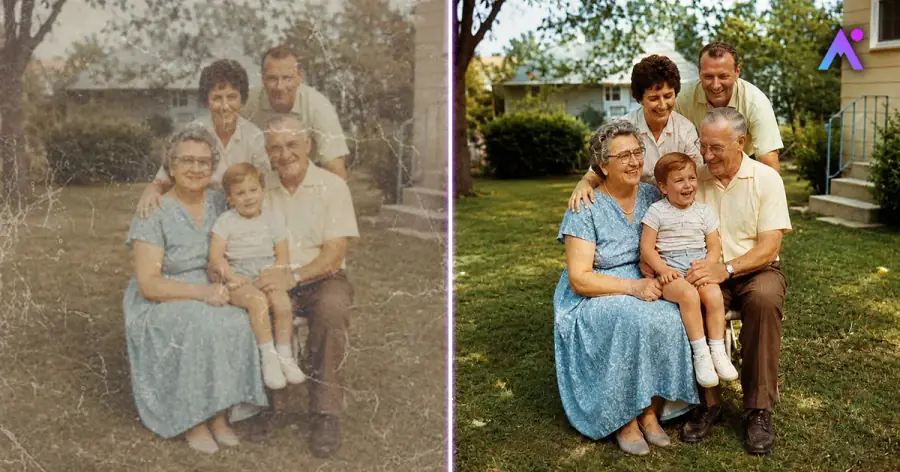
Older family pictures may contain fading, scratches, stains, or other damage. You can consider restoring the image before animation, especially when important facial details are difficult to see.
Our guide to restoring old photos online with AI explains how AI restoration can help improve certain types of old photographs.
Keep an untouched copy of the original image. This allows you to preserve the authentic photograph separately from any enhanced or animated versions.
Step 3: Decide What Movement You Want
Before using an AI animation tool, think about the result you want. A clear, simple direction can help you avoid unnecessary or exaggerated movement.
Some ideas include:
A gentle family portrait: Add a subtle smile, natural blinking, or a small head movement.
A grandparents' photograph: Use restrained movement that keeps the original appearance recognizable.
A childhood memory: Try a gentle camera zoom or a natural facial expression.
A couple's photograph: Use subtle movement that suits the original pose without introducing dramatic changes.
A family celebration: Create a short animation with a gentle camera movement, keeping the main subjects visible.
The best choice depends on the photograph. A close-up portrait may work well with facial movement, while a group photograph may benefit more from a restrained camera effect.
Step 4: Upload Your Photo to Animate Memories
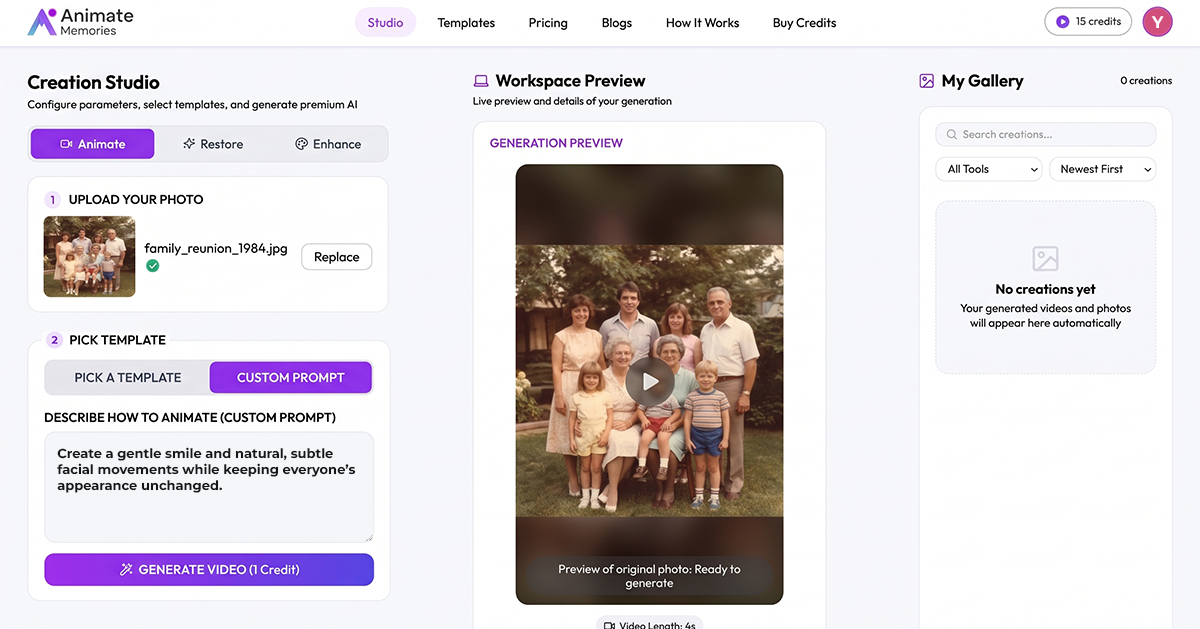
Open Animate Memories Studio and upload the photograph you want to animate.
Choose Animate, then pick a template example: family photo animated Pose, Group Laugh or describe the movement you want in your own words. Choose the video length and quality; the credit cost shows before you generate, and a 5-second 720p video uses 4 credits.
If you are using a family photo animated that includes children or other relatives, check the platform's privacy information before uploading it. Make sure you have permission to use and share photographs belonging to other people.
Step 5: Write a Clear Animation Prompt
A prompt tells the AI what kind of movement you want. Keep it focused on the main action and ask the tool to preserve the subject's recognizable appearance.
Here are a few prompts you can adapt to your photographs.
Prompt 1: Grandparents' Portrait
"Create a gentle animation from this family portrait. The subject slowly turns slightly toward the camera and gives a subtle, natural smile. Preserve the original facial features, clothing, and overall appearance. Keep the movement smooth and realistic."
Prompt 2: Childhood Photograph
"Animate this childhood portrait with a small, natural smile and gentle blinking. Keep the child's facial features and original appearance consistent with the photograph. Use subtle movement and avoid exaggerated expressions."
Prompt 3: Family Couple Portrait
"Create a subtle animation from this couple's photograph. Add gentle natural movement while preserving both people's recognizable facial features, clothing, and original pose. Keep the composition stable and the motion smooth."
Prompt 4: Family Group Photograph
"Create a gentle animation from this family group photo. Keep all subjects recognizable and preserve the original composition. Use minimal natural movement and a subtle camera push-in. Avoid exaggerated gestures or changes to facial features."
These are starting prompts, not guaranteed results. The output will depend on the original image, the animation model, and the available settings.
Step 6: Generate and Review the Animation
Generate the video and preview it before saving or sharing it.
Check whether the faces remain recognizable, the movement looks natural, and the animation preserves the feeling of the original photograph. Pay attention to unexpected changes in facial features, hands, clothing, or the background.
If the result looks unnatural, simplify the prompt and try again if your tool allows it. For example, asking for one gentle movement may work better than requesting several different actions in the same animation.
Take your time choosing the final version. The goal is to complement the photograph, not to make it unrecognizable.
Step 7: Save and Share Your Animated Photo
Once you are satisfied with the result, save or export it using the available options.
You can share the animation privately with relatives, add it to a family slideshow, or include it in a birthday or anniversary video. You may also combine several animated photographs into a short family-memory collection.
Keep the original image and the final animation in separate folders. Consider maintaining a backup so that your family photo animated remain available even if you later change or remove the animated versions.
Animating Different Kinds of Family Photos
Group Photos
Group shots work best when every face is clear. Ask for one shared movement, such as everyone smiling, or a slow camera push-in, rather than a different action for each person. If faces are very small, crop to a smaller group first.
Wedding Portraits
A parent's or grandparent's wedding portrait is one of the most popular photos to animate. Keep the pose and add a gentle smile and a slow blink. Scan fragile prints first with our guide to digitizing old wedding photos, and read what a 1920s wedding photo can mean to four generations.
Photos of Loved Ones Who Have Passed Away
Many families animate a portrait of a parent or grandparent for a memorial service or an anniversary. Keep the movement minimal, check with close family first, and say the movement was created with AI when you share it. For one family's story, read Finding Grandfather: An Animated WWII Snapshot Story.
Creative Ways to Bring Family Photos to Life
Once you have created your animation, there are several ways to make it part of your family memories.
- Birthday videos: Combine meaningful photographs into a short greeting for a family member.
- Anniversary presentations: Include animated portraits in a collection of photographs celebrating a couple's journey.
- Family reunions: Share selected animated images as part of a family slideshow.
- Digital memory albums: Organize photographs by person, generation, or special occasion.
- Personalized gifts: Create a thoughtful digital keepsake using photographs that have special meaning.
- Holiday gifts: Give grandparents an animated photo of their own wedding or childhood for Thanksgiving or Christmas.
- Memorial tributes: Play a gently animated portrait of a loved one at a memorial or remembrance day.
- Family history projects: Combine original photographs, captions, dates, and family stories to help younger generations understand their heritage.
Choose the format that best suits the occasion, and remember that not every photograph needs to be animated. Sometimes preserving and sharing the original image is the most meaningful choice.
How to Animate Old Family Photos with AI
Learning how to animate old family photos with AI starts with choosing a clear photograph. Upload your selected family picture to Animate Memories, choose a suitable animation template or movement style, and generate your animated result. For the best experience, start with subtle movements that preserve the original look of the photograph.
Family Photo Animation and Privacy
Family photographs can contain sensitive personal information, particularly when they include children, private family events, or people who are no longer able to give permission.
Before uploading a photograph, review the AI tool's privacy policy and understand how uploaded images may be processed or stored. Obtain permission from other people where appropriate, especially before sharing animated versions publicly.
It is also helpful to label AI-generated animations clearly when viewers might mistake the generated movement for authentic video footage. This is particularly important when sharing historical photographs or creating family-history materials.
AI animation can be a useful addition to your digital family archive, but it should be used thoughtfully and alongside careful preservation of the original photographs.
Frequently Asked Questions
Can I animate family photos with AI for free?
Animate Memories includes a 7-day free trial in the app. After that, you can buy a one-time credit pack or choose a monthly plan; a 5-second 720p video uses 4 credits. See current plans and pricing.
What type of family photo works best for animation?
A clear, well-lit photograph with visible facial features is a good starting point. Single-person portraits can be easier to animate consistently than crowded group photographs.
Can I animate old family photos?
Yes. You can try animating old family photographs, including vintage portraits and childhood pictures. If an image is faded or damaged, improving its quality first may help, although the results will vary. Our step-by-step guide to animating an old photo covers each stage.
Can AI make family members move naturally in a photo?
Yes. Animate Memories can add blinking, a smile, a slight head turn, or a gentle camera movement. These movements are generated interpretations rather than recordings of what actually happened.
Can I use animated family photos in a video or slideshow?
Yes. Animated photos can be included in personal slideshows, birthday greetings, anniversary videos, and family-history projects. Check the platform's export options and respect the privacy of the people shown.
What is the best AI tool for animating old family photos?
Animate Memories is built for animating old family photos. You upload a scan, choose a template or describe a gentle movement like a smile or blink, and get a short video. It can also restore faded or damaged photos first. Your uploads stay private, and you can start with 4 free credits, no credit card required.
Final Thoughts
Family photographs help preserve the people and moments that matter most. With AI photo animation, you can explore a new way to revisit those memories, whether you are working with a recent family portrait or a photograph that has been kept for generations.
Start with a clear image, choose a simple movement, and review the result carefully. Keep your original photographs safe, respect the privacy of the people in them, and use animation as a creative addition to your family archive.
Ready to bring a cherished family photo to life? Animate your family photo now.