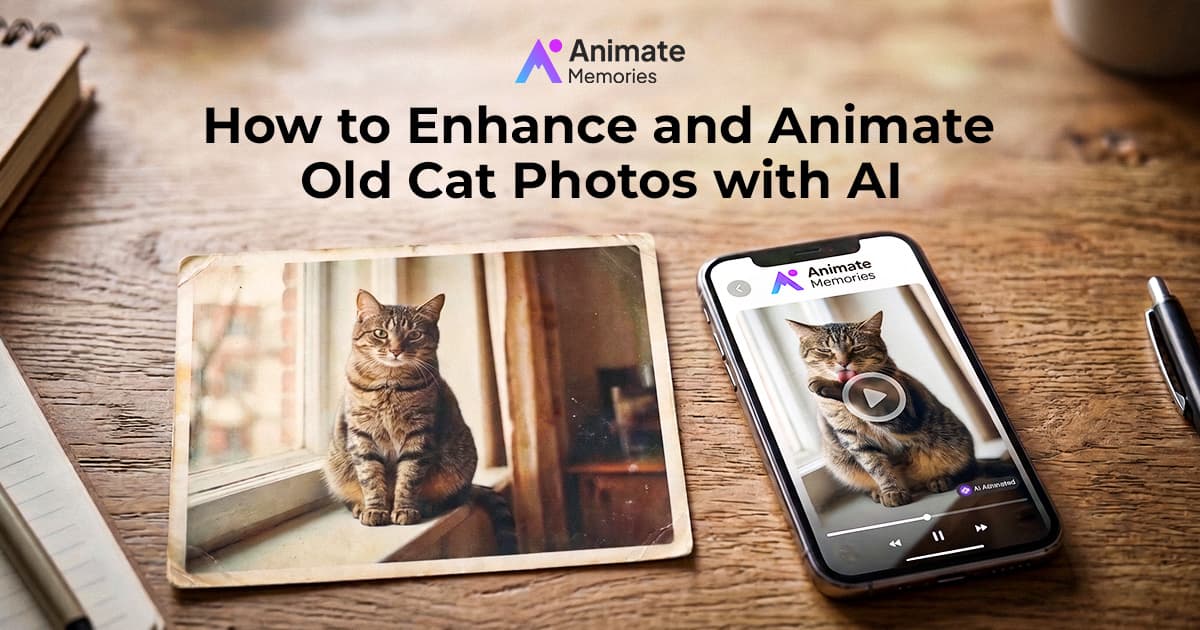
How to Enhance and Animate Old Cat Photos with AI
Old cat photos often hold special memories. A faded picture of a childhood pet, a photograph of a cat that grew up with your family, or a snapshot of a beloved companion from years ago can bring back moments you never want to forget. Unfortunately, time can leave these photographs faded, scratched, blurry, or difficult to see clearly.
With AI photo enhancement and animation, you can give these pictures a fresh digital appearance and turn selected images into short animated videos. You can improve visible details, explore a cleaner version of an old photograph, and add subtle movement to create a new way to revisit your pet's memories.
Learning how to enhance and animate old cat photos with AI does not require professional editing skills. With a suitable image, a clear prompt, and a little experimentation, you can create a digital keepsake of a cat that has been part of your life.
In this guide, you will learn how to improve old cat photographs, animate them with AI, write effective prompts, and preserve the original images throughout the process. National Cat Day is Thursday, October 29, a good moment to celebrate the cat you have now or remember one you miss.
Why Enhance and Animate Old Cat Photos?
Photographs capture the personality and appearance of a pet at a particular moment. Over time, printed photographs may fade, and digital copies can become difficult to use if they are blurry or low in resolution.
Enhancing and animating an old cat photo gives you two different ways to work with that memory.
Improve the Appearance of Old Pet Photos
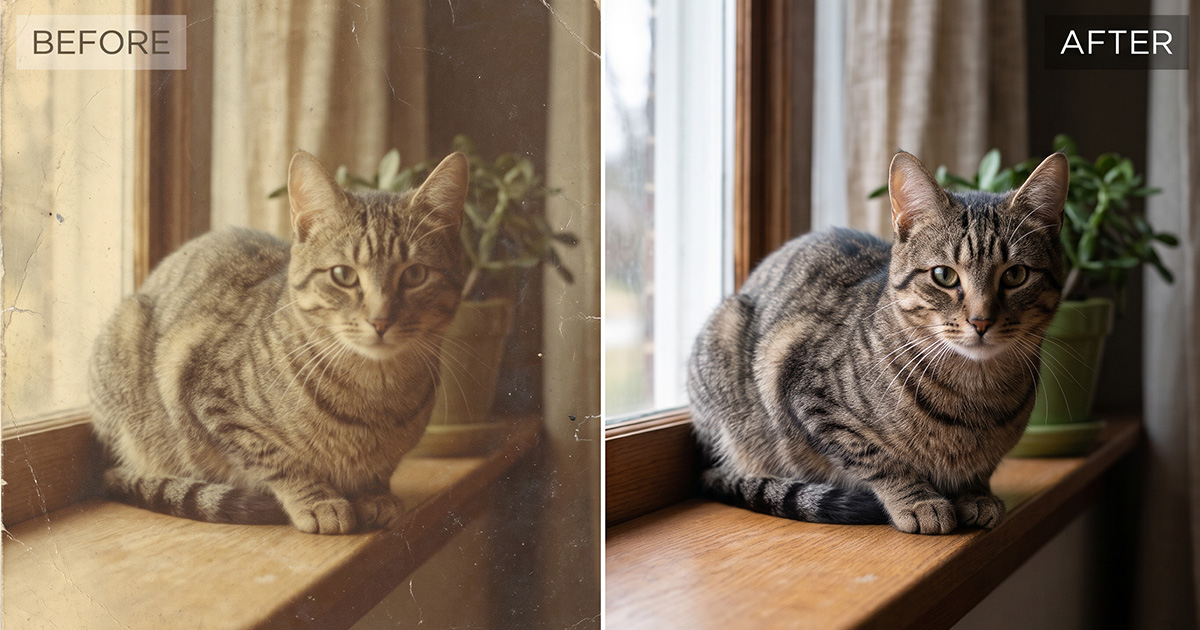
AI photo enhancement can help improve clarity, contrast, and visible details. Depending on the photograph and the tool, it may also reduce certain types of noise, fading, or minor damage.
For example, a faded photograph of a cat sitting beside a window may become easier to view after its brightness and contrast are improved. Restoration can also help make facial details and fur patterns more visible, although the result depends on the quality of the original image.
Create a Moving Version of a Cherished Memory
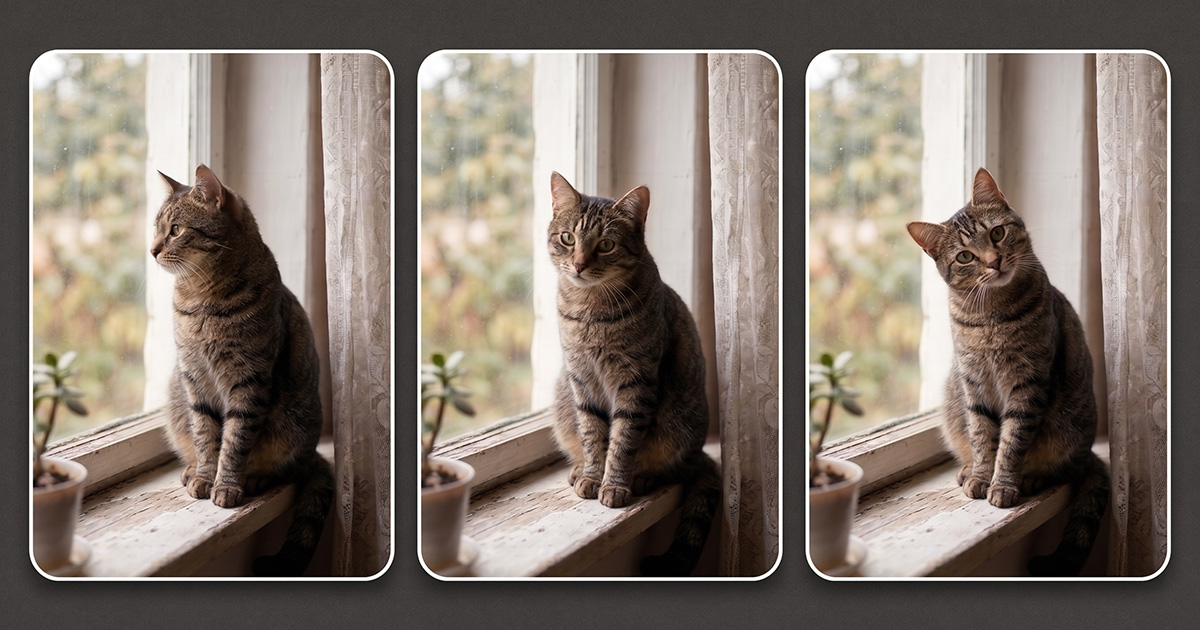
AI photo animation can generate movement from a still image. Depending on the tool, this may include a subtle head turn, a small movement of the ears, a gentle camera zoom, or other effects.
These movements are AI-generated interpretations, not recordings of what the cat actually did. Still, they can offer a creative way to revisit a photograph and share a memory with family members.
Preserve Your Pet's Story
An enhanced photograph or animated clip can become part of a digital pet album, a family slideshow, or a personal tribute. You can also organize images by date, age, or memorable moments to create a visual record of your cat's life.
What Types of Old Cat Photos Can You Enhance with AI?
You can experiment with different kinds of pet photographs, depending on their condition and the capabilities of your chosen tool.
- Vintage cat portraits: Improve the appearance of older printed photographs.
- Childhood pet photos: Revisit pictures of a cat from your early years.
- Black-and-white cat photos: Improve contrast or explore colorization with a suitable restoration tool.
- Faded cat photographs: Try enhancing images with low contrast or washed-out details.
- Blurry pet snapshots: Test whether AI enhancement can improve the visible details.
- Memorial photographs: Prepare a meaningful image for a personal tribute or digital album.
A clear photograph with the cat's face and body visible is usually a useful starting point. Heavily damaged or extremely blurry images may produce unpredictable results, so it is worth reviewing the enhanced image before moving to animation.
8 Steps to Restore and Animate an Old Cat Photo
Follow these steps to prepare an old pet photograph and turn it into an animated memory.
Step 1: Choose Your Old Cat Photo
Start with a photograph that has personal meaning. It could show your cat resting on a sofa, sitting in a garden, looking toward the camera, or playing with a favorite toy.
Choose the highest-quality version available. If you have the original printed photograph, consider scanning it instead of using a low-quality screenshot or compressed copy.
Look for an image where the cat's face, ears, and general body shape are reasonably clear. If the photograph includes several animals or people, consider whether the main subject is easy to identify.
Keep an untouched copy of the original image before making any changes.
Step 2: Digitize the Photograph
If your cat photo exists only as a printed picture, convert it into a digital file.
Scan it on a flatbed scanner at 600 DPI or higher. If you photograph the print with a camera, use even lighting and avoid reflections, shadows, and glare.
Crop away unnecessary borders if they distract from the subject, but do not crop so tightly that important details disappear. A clear digital image gives enhancement and animation tools more visual information to work with.
Step 3: Enhance or Restore the Old Cat Photo
Before animation, review the image for fading, scratches, blur, and other visible imperfections.
An AI photo restoration tool may help improve certain details, reduce image noise, or repair some types of damage. If the photograph is black and white, a suitable tool may also offer colorization.
However, enhancement can sometimes introduce details that were not clearly present in the original image. AI may interpret a fur pattern, eye shape, or background feature incorrectly.
Compare the enhanced version with the original. If the cat's appearance changes too much, try a lighter enhancement or use a different source image.
For a more detailed explanation, read our guide to restoring old photos online with AI.
Step 4: Choose an Animation Style
Once the photo is ready, decide how you want the cat to move. A subtle animation often works better than a complicated sequence, particularly when working with an old photograph.
Here are some ideas to explore:
Gentle head movement: Give the cat a slight head turn while keeping its appearance consistent.
Curious cat portrait: Use a subtle movement that creates the impression of the cat noticing something nearby.
Relaxed pet memory: Try minimal movement and a gentle camera zoom for a calm, portrait-style animation.
Playful pet photograph: Experiment with a small movement that suits the cat's original pose.
Vintage pet portrait: Keep the motion restrained and focus on preserving the look and character of the old photograph.
Start with gentle head movement. It gives the most natural result on old photos, and you can try bolder ideas once you see how your photo responds.
Step 5: Upload Your Photo to Animate Memories
Open the Studio, choose Animate, and upload the restored cat photo.
Pick a template or type a prompt describing the movement you want; the four prompts below are a good start.
Choose the video length and quality. The credit cost shows before you generate; a 5-second 720p video uses 4 credits.
If the first result looks odd, try a simpler prompt or a photo with a clearer view of the cat's face.
Step 6: Write an Effective AI Cat Animation Prompt
A useful prompt explains the movement you want while asking the AI to preserve the cat's original appearance.
Avoid requesting too many actions at once. Start with one main movement and adjust the prompt after reviewing the result.
Here are four prompts you can adapt.
Prompt 1: Gentle Cat Portrait
"Create a subtle animation from this old cat photograph. The cat makes a small, natural head movement while remaining in its original pose. Preserve the cat's fur pattern, face, eye color as visible in the source, and overall appearance. Keep the motion smooth and understated."
Prompt 2: Curious Cat
"Animate this cat photograph with a gentle head tilt and a subtle change in gaze, as if the cat has noticed something nearby. Preserve the original fur markings, body shape, and background. Avoid exaggerated movements."
Prompt 3: Vintage Cat Photo
"Create a gentle animation from this vintage cat portrait. Add a slow camera push-in and minimal natural movement while preserving the original photographic style and the cat's recognizable features. Keep the result simple and realistic."
Prompt 4: Relaxed Pet Memory
"Animate this photograph of a relaxed cat with very subtle movement. Keep the cat in its original position and preserve its facial features and fur pattern. Use a calm visual style and avoid dramatic changes to the image."
These prompts are starting points rather than guarantees. Adjust the wording to suit the photograph and the capabilities of the animation tool.
Step 7: Generate and Review the Animation
Generate the animation and watch it carefully before saving the result.
Check whether the cat's face, fur markings, eyes, and body shape remain consistent. Look for unusual movements, flickering, distorted paws, or changes in the background.
If the animation looks unnatural, simplify the prompt. For example, try requesting only a subtle head movement instead of several actions at once.
You can also return to the enhanced photograph if the animation model has difficulty interpreting the image. A different crop or a clearer source photo may produce a better result.
Step 8: Save and Share Your Animated Cat Photo
When you are happy with the result, save the animation using the options available in your tool.
You can include it in a digital pet album, a personal tribute, a family slideshow, or a social media post. If you create a collection of animated photographs, organize the files with descriptive names so you can find the original and edited versions later.
Keep the original photograph, enhanced image, and animated video separately. This helps preserve the source image and makes it easier to revisit the project in the future.
Tips for Better Old Cat Photo Enhancement and Animation
Start with the Best Available Original
Even if the photo is old, choose the clearest copy you can find. A sharp scan is generally a better starting point than a blurry screenshot.
Preserve Distinctive Fur Patterns
Cats often have recognizable markings around their eyes, face, chest, and paws. Compare these details before and after enhancement to make sure the image still resembles your pet.
Avoid Over-Restoration
Excessive sharpening or AI reconstruction can create unnatural details. Choose an enhanced version that improves clarity without changing the cat's appearance unnecessarily.
Keep Animation Simple
Subtle movement can be more effective than a complicated action. Start with a gentle head movement or camera effect, then experiment if needed.
Keep Your Files Organized
Store a copy of the original image alongside the enhanced and animated versions. This is especially useful for old photographs that cannot easily be replaced.
For more tips on creating natural-looking animations, read our complete guide to AI photo animation.
Creative Ways to Use Animated Cat Photos
After enhancing and animating your photograph, you can use it in several personal projects.
- Digital pet albums: Collect photographs from different stages of your cat's life.
- Pet tribute videos: Combine selected photographs and captions to celebrate a beloved companion.
- Personalized gifts: Create a short video for someone who shares a special connection with the cat.
- Social media memories: Share an animated photograph with a caption about the moment it captures.
- Family archives: Preserve pet photographs alongside dates, names, and stories about the animal.
Choose a format that feels appropriate for the memory. An animated image can complement the original photograph, but the original remains valuable in its own right.
You can also explore more ideas in our guide on how to turning old photos into videos with AI.
Frequently Asked Questions
Can I enhance old cat photos with AI?
Yes. AI enhancement tools may improve clarity, contrast, and certain types of image damage. Results depend on the quality and condition of the original photograph.
Can AI animate an old cat photo?
Yes. Upload the photo to Animate Memories, choose Animate, and ask for one gentle movement, such as a slow head tilt. Clear photos where the cat's face is visible give the best results.
Should I restore a cat photo before animating it?
If the image is faded, scratched, or blurry, enhancement or restoration may help. Review the restored version first because AI can sometimes alter small details.
What is the best prompt for animating an old cat photo?
Start with a simple instruction describing one movement, such as a gentle head turn. Ask the tool to preserve the cat's original facial features, fur pattern, and body shape.
Can I animate a black-and-white cat photograph?
You can try animating a black-and-white photograph if your chosen tool supports it. Colorization is optional, and it is best to preserve the original version separately if you decide to experiment with color. To add color first, see our guide to colorizing black-and-white photos.
How can I preserve my original cat photographs?
Keep original prints in suitable storage, digitize valuable photographs, and maintain backups of the digital files. Save enhanced images and animated videos separately so that your original photographs remain unchanged.
Final Thoughts
Old cat photographs capture small moments that can become meaningful memories over time. AI photo enhancement can help improve the appearance of these pictures, while animation offers a creative way to add movement and revisit them in a new format.
Start with a clear digital copy, enhance it carefully, and use a simple prompt that respects the cat's original appearance. Review the result, preserve the original file, and choose a way to share or store the animation that feels right for you.
Celebrate National Cat Day on October 29. Animate your cat photo now.