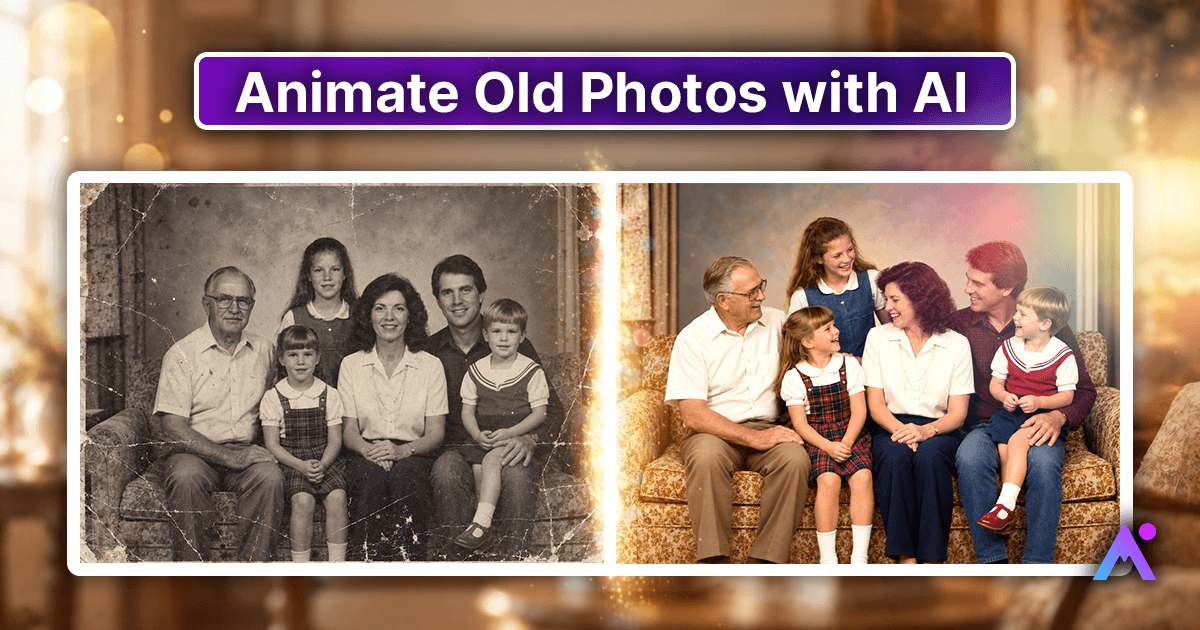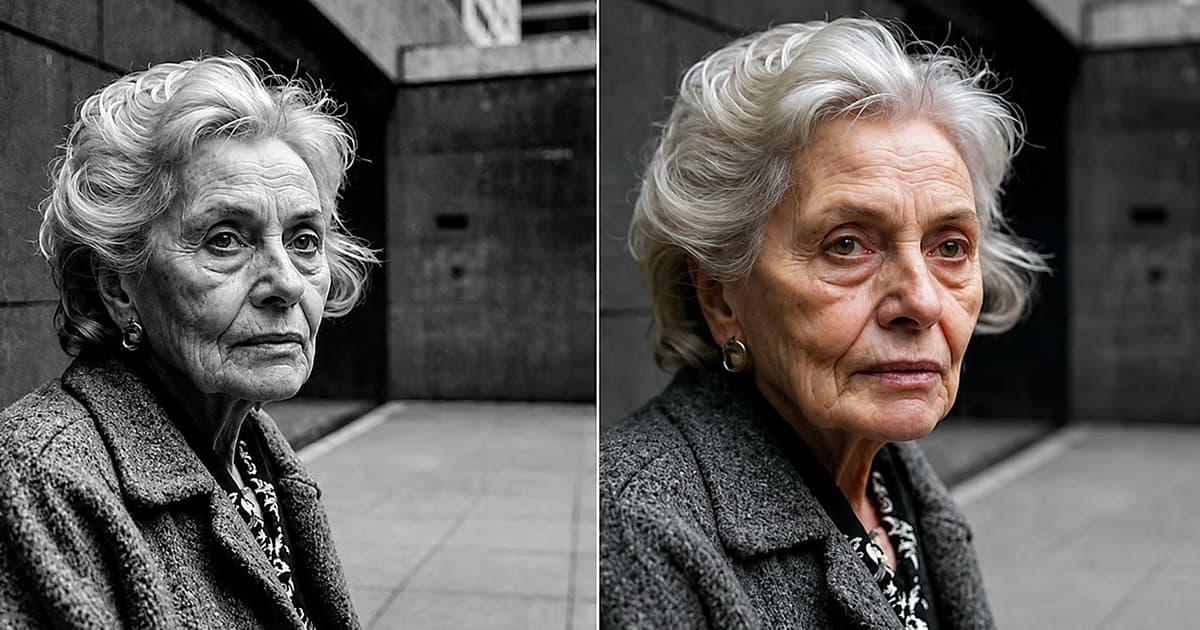
Animate Old Photos with AI
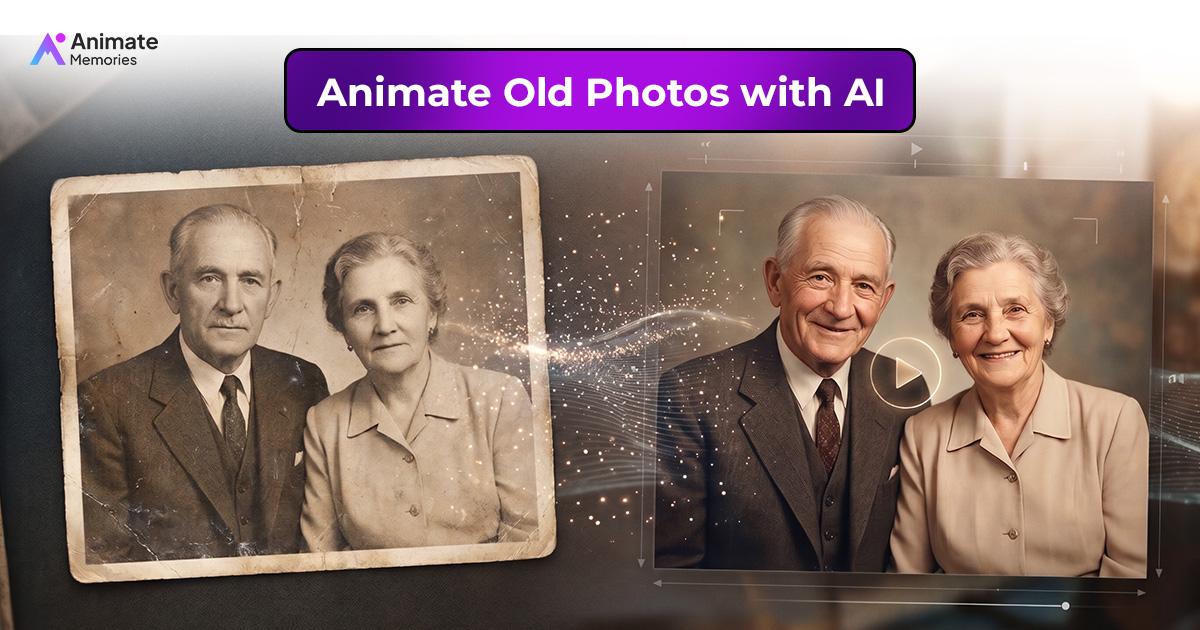
Old photographs hold moments that deserve to be remembered. A childhood portrait, a wedding picture, a family gathering, or an old photograph of your grandparents can bring back stories and emotions from years ago. But photographs capture only one moment in time. What if you could experience those memories in a different way?
When you animate old photos with AI, faces can gently smile, blink or turn, and a still picture becomes a short video.
Instead of viewing a cherished picture as a still image, you can explore a new way to revisit the people and moments it represents.
Animate Memories makes it simple to animating old photos online. Upload a photograph, choose an animation template or describe the movement you want, and let AI generate a short video from your image. You can also restore faded or damaged photographs before animating old photos to prepare them for a new digital experience.
Whether you want to bring an old family portrait to life, animate a childhood memory, or create a meaningful video from a vintage photograph, Animate Memories gives you an accessible way to get started.
Upload your old photo and discover a new way to experience your memories.
See an Old Photo Come to Life
What Does It Mean to Animate Old Photos?
Animating old photos means using artificial intelligence to generate movement from a still photograph. An AI Old Photo Animation tool analyzes visual information in an image, such as facial features, subject positioning, and other visible details, to create a short animated video.
For example, a photograph of your grandfather may be transformed into a clip showing a gentle smile, a slight head movement, or natural blinking. A childhood portrait can become a short moving memory that offers a different way to revisit that moment.
AI Old Photo Animation is different from traditional video editing. You do not need an original video recording of the person. The AI to animate old photo ai generates new frames based on the still image and the animation instructions or template you select.
The result is an AI-generated interpretation of the original photograph, not actual footage of how the person moved. The original photograph remains an important record of the moment, while the animation old photos offers a creative way to experience it. To learn more about how the technology works, read our guide to what AI photo animation is.
How to Animate Old Photos Online with Animate Memories
You do not need professional video editing experience to start animating old photographs. Animate Memories provides an online workflow that brings the main steps together.
Step 1: Choose an Old Photograph
Start with a photograph that you want to animate. It could be a picture of your grandparents, a childhood portrait, a wedding photograph, or a family gathering from years ago.
For a better starting point, choose an image where the main subject's face is visible. A clear, well-lit portrait generally gives the AI more visual information.
Step 2: Upload Your Image
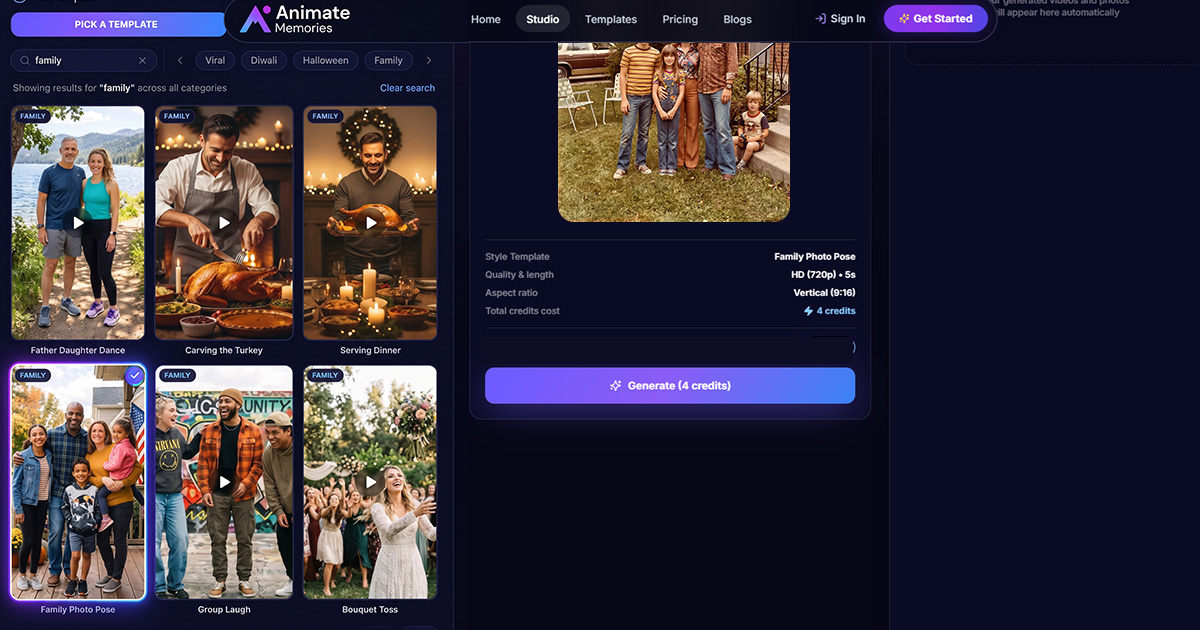
Open the Animate Memories Studio and upload your photograph. Use a digital image or scan a printed photograph before uploading it.
Make sure the image is not heavily blurred, cropped, or covered by glare. If you have several versions of the same photograph, choose the clearest available copy.
Step 3: Choose an AI Template or Custom Prompt
After uploading the photograph, explore the available animation templates or describe the movement you would like to generate.
Templates provide a convenient starting point when you want to try a predefined style. A custom prompt gives you more control over the movement you want the AI to attempt.
For example, you could try prompts such as:
- "The person smiles gently and blinks naturally."
- "The grandfather slowly turns his head and smiles."
- "The couple looks toward each other with a gentle expression."
- "The family members smile softly toward the camera."
Keep prompts simple and focused on one or two movements. Complicated instructions may produce less predictable results.
Step 4: Generate Your Animated Photo
Once you have selected a template or entered a prompt, start the generation process.
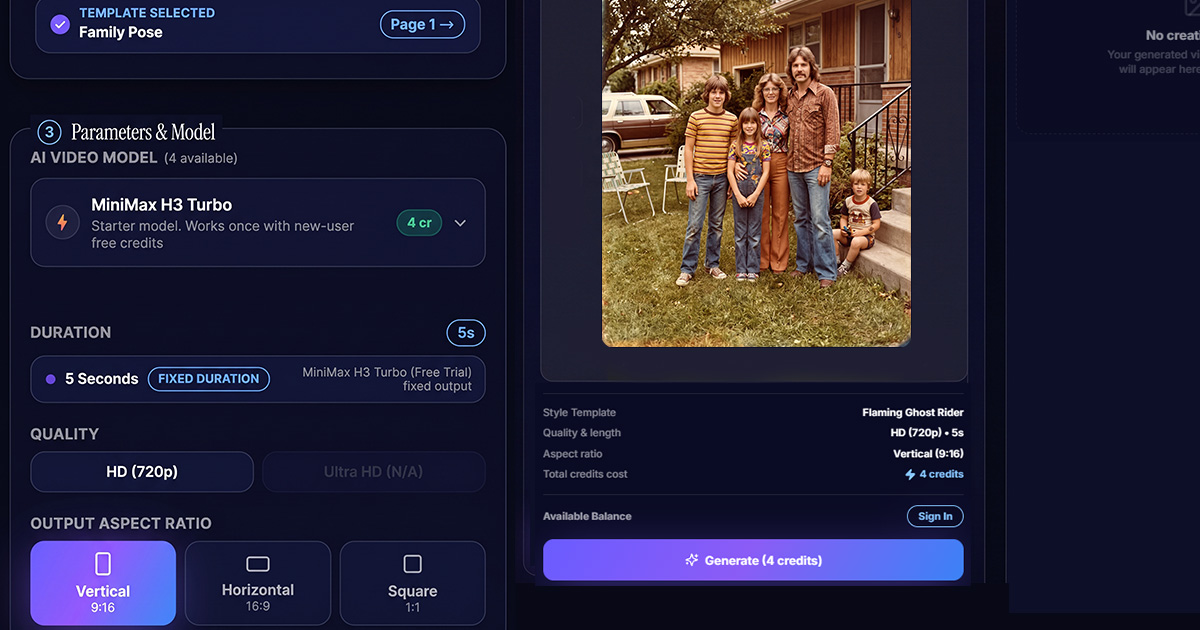
The AI will use your uploaded photograph and selected instructions to create a short animated video. Processing time can vary depending on the model, image, and server conditions. Before you start, choose the video length and quality.
The credit cost is shown before you generate, so you always know what you are using.
Step 5: Preview Your Result
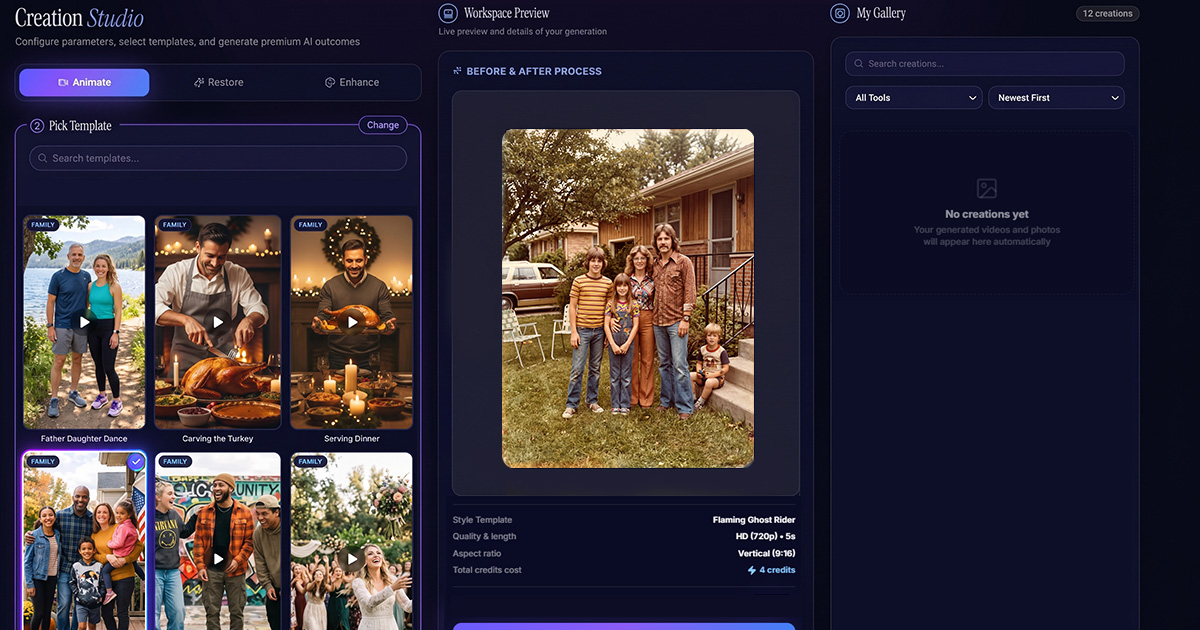
Review the generated video before saving it. Check whether the faces remain recognizable and whether the movement looks appropriate for the photograph.
If the result does not match what you imagined, try a different template, simplify the prompt, or choose a clearer photograph.
Step 6: Download and Keep Your Memory
When you are satisfied with the result, download your animated video and save it with the original photograph.
You can keep it in a personal digital album, share it with relatives, or include it in a family memory project. For a more detailed walkthrough, see our step by step guide on how to animate an old photo.
What Types of Old Photos Can You Animate?
AI Old Photo Animation can be used with many kinds of photographs. The best choice depends on the image quality, the visible subjects, and the type of result you want.
Animate Old Family Photos
Family photographs often contain memories of people and moments that are important across generations. You can animate selected family portraits, childhood photographs, or pictures from family gatherings.
A short animation can offer a new way to revisit a familiar image and share it with relatives. See more ideas in our guide to animating family photos.
Animate Grandparents' Photos
Photographs of grandparents can be especially meaningful. An old portrait, a childhood photograph, or a picture from an earlier family celebration may hold stories that younger generations have never heard.
AI to Animate Old Photos AI can add generated movement to a suitable portrait, offering another way to experience the photograph. Always preserve the original and consider family preferences before sharing an animation.
Animate Old Wedding Photos
Wedding photographs capture an important day in a couple's life. Older wedding portraits may have faded or become difficult to view over time.
You can digitize a wedding photograph and use AI animation to create a short moving version. A clear portrait of the couple is usually a useful starting point. Read how a 1920s wedding photo brought four generations to tears.
Animate Childhood Photos
Childhood photographs can bring back memories of school days, birthdays, holidays, and everyday family life.
Animating a childhood portrait can create a different way to revisit a moment from the past. Choose an image with clear facial details and avoid expecting the animation to reproduce the original event exactly.
Animate Vintage and Black-and-White Photos
AI photo animation is not limited to modern digital pictures. You can also experiment with digitized vintage photographs and black-and-white portraits.
If the photograph is faded or damaged, consider restoring a separate digital copy first. This may help improve the visible details before animation. Our guide to restoring old photos online with AI explains how.
Animate Pet Photos
Photographs of pets can also hold special meaning. A clear picture of a beloved dog or cat may be used as the starting image for an animation, depending on the tool and the subject.
Keep the original photograph safe and review the generated movement to make sure it feels appropriate. See how to enhance and animate old cat photos.
How to Choose the Best Photo for AI Animation
The original image has a major influence on the animation old photos result. A good photograph does not have to be new or professionally taken, but it should contain enough visible detail for the AI model to work with.
Here are some practical tips for choosing a suitable image.
Choose Clear and Visible Faces
Portraits with clearly visible faces generally provide a better starting point. If the face is very small, hidden, or heavily blurred, the model may have difficulty generating natural-looking movement. For more advice, read our 5 secrets to getting flawless facial animations with AI.
Use the Highest-Quality Copy Available
If you have the original print, scan it at a suitable resolution. If you have several digital copies, use the clearest one rather than a heavily compressed version.
Avoid Strong Glare and Shadows
Reflections, uneven lighting, and deep shadows can hide important facial details. When photographing a printed image, use even lighting and keep the camera parallel to the photograph.
Be Careful with Group Photos
Group photographs can be more challenging than single-person portraits because several faces and positions appear in the same image.
Choose a photograph where the people are clearly visible. Start with simple animation instructions rather than asking everyone to perform several different actions at once.
Keep the Original Photograph
Always save an unchanged copy before restoring or animating an image. This gives you a reference for comparing the generated result with the original memory.
What If Your Old Photo Is Damaged or Faded?
Many family photographs have been stored for decades. Over time, they may develop scratches, creases, stains, fading, discoloration, or blur.
You do not necessarily have to abandon a photograph because it is damaged. You can first create a digital copy and explore photo restoration before animation. animating old photos
Animate Memories also offers photo restoration features designed to help improve faded, scratched, and low-quality photographs. Depending on the image, restoration may help improve clarity, recover visible details, or address some signs of damage.
A useful workflow is:
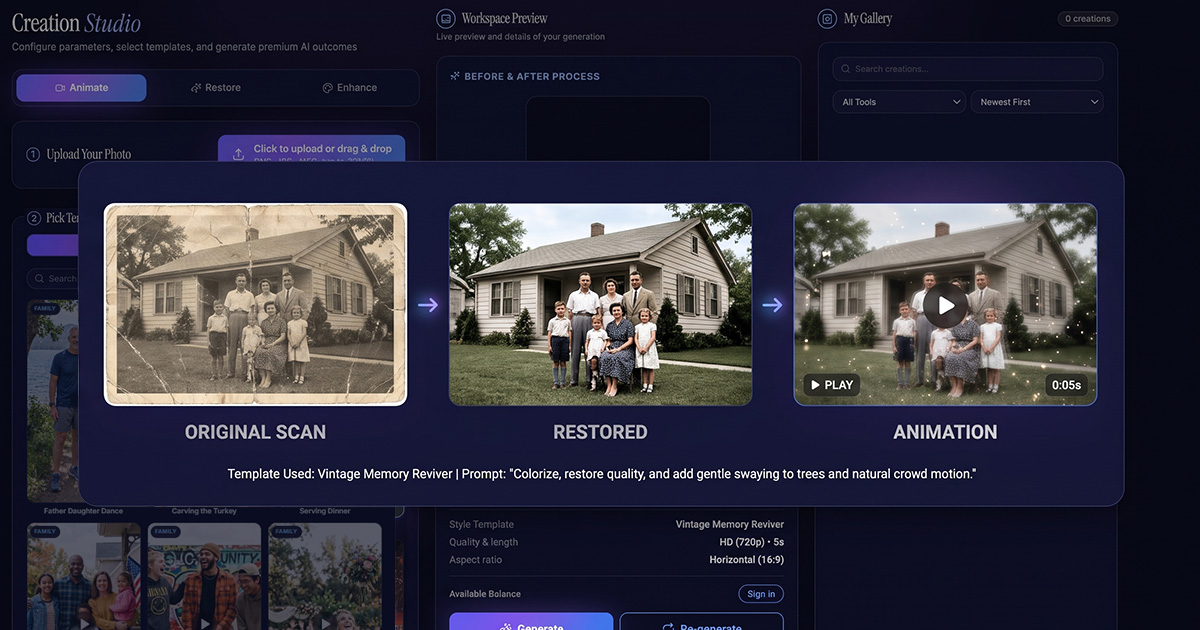
Digitize → Restore → Review → Animate → Save
Start by scanning the original photograph. Create a separate digital copy for restoration, review the result carefully, and then use the improved version for animation if it looks suitable.
Keep in mind that restoration tools may interpret unclear or missing details. A heavily damaged photograph may not be recoverable in full, and the restored result may not reproduce every original detail accurately.
If you want to explore restoration separately, read our guide to restoring old photos online with AI.
Creative Ways to Use Animated Old Photos
Once you have created an animated photograph, you can use it in different personal and creative projects.
Create a Family Memory Video
Combine selected animated photographs with original images to create a family memory video. You could arrange the pictures by year, family member, or important life events.
Celebrate Birthdays and Anniversaries
An animated childhood picture or wedding portrait can add a personal touch to a birthday or anniversary presentation.
Choose photographs that have special meaning to the person being celebrated. For holiday ideas, see our spooky Halloween photo animations.
Preserve Family History
You can include selected animated photographs in a digital family archive alongside original scans, names, dates, and short descriptions.
The animation adds another format to the collection, while the original photograph remains the historical record. You can also start from one of our ready-made templates.
Create a Memorial or Tribute Video
Some families choose to include animated photographs in a personal tribute. If you do this, use a respectful approach and consider how family members feel about AI-generated movement.
It is important to make clear that the animation is generated from a still photograph, not real video footage. Choose gentle movement only, and check with close family before sharing. Read how one family did this in Finding Grandfather: An Animated WWII Snapshot Story.
Share Memories with Relatives
You can share an animated photograph privately with family members or include it in a family slideshow. Before sharing photographs publicly, consider the privacy and preferences of the people shown.
Why Choose Animate Memories to Animate Old Photos AI?
Choosing an AI photo animation tool is about more than generating movement. You also want a straightforward workflow, useful creative options, and a way to keep your original photographs.
Animate Memories brings photo animation and photo restoration into one online experience.
AI Animation Templates
Explore ready-made templates for different styles and occasions. Templates can help you get started without having to write a detailed prompt for every photograph.
Custom Animation Prompts
When you want to describe a particular movement, you can use a custom prompt. Simple instructions such as a gentle smile or a slight head turn can provide a focused starting point.
Photo Restoration Options
If your photograph is faded, scratched, or low-quality, you can explore restoration before animation. This makes it possible to prepare an image and then decide whether to create an animated version.
Online Workflow
You can upload a photograph, choose an animation style, generate a result, and download it through the online Studio. You do not need to start with professional video-editing software.
4 Free Credits, Then Simple Pricing
New users get 4 free credits to start, with no credit card required. After that, you can buy a one-time credit pack or choose a monthly plan, starting at $9.99 a month for 40 credits. The credit cost of each video is shown before you generate. See all plans on our pricing page.
Your Photos Stay Private
Your uploads are encrypted, never shared with third parties and deleted after 30 days. Your animated videos stay private unless you choose to share them. Read our privacy policy for full details.
Tips for More Natural-Looking AI Photo Animation
The goal of animating an old photograph is often to add a little movement while keeping the image recognizable. These tips can help you make more considered choices.
- Start with subtle movement: Try a gentle smile, blink, or slight head movement before experimenting with more complex actions.
- Keep prompts simple: Describe one or two movements clearly rather than asking for several actions at once.
- Choose a suitable image: Clear faces, good lighting, and visible features provide a useful starting point.
- Restore carefully: If you improve an old photograph first, compare the restored version with the original to make sure important details remain recognizable.
- Preview every result: AI-generated movement can vary. Review the video before sharing it. ai to animate old photos
- Save both versions: Keep the original photograph, restored copy, and generated video in separate files.
Remember that no AI tool can guarantee the same result for every photograph. The final animation depends on the source image and the generation process.
Frequently Asked Questions About Animating Old Photos
1. How can I animate old photos online?
You can animate old photos online by uploading a digital photograph to an AI photo animation tool. Choose a template or describe the movement you want, generate the animation, and preview the result before downloading it.
2. How much does it cost to animate a photo?
You can start with 4 free credits and no credit card. After that, credits come in one-time packs or monthly plans, starting at $9.99 a month for 40 credits. Each animation uses a set number of credits depending on its length and quality, and the Studio shows the cost before you generate.
3. Can I animate old family photos?
Yes. Old family portraits, childhood pictures, wedding photographs, and other family images can be used for AI animation. Results depend on image quality, face visibility, and the capabilities of the animation tool.
4. Can I animate photos of my grandparents?
Yes. A suitable photograph of your grandparents can be used to generate a short AI animation. Choose a clear image, keep the original safe, and consider family preferences before sharing the result.
5. Can I animate a black-and-white photograph?
Yes. You can experiment with a digitized black-and-white photograph. If the image is faded or damaged, consider restoring a separate copy before animation. Colorization is a separate process and is not required for every animation.
6. Can I animate damaged or blurry old photos?
Some damaged or blurry photographs may still be usable, but image quality can affect the result. Consider restoring or enhancing a digital copy first. Very severe damage, missing details, or unclear faces may limit what the AI can generate.
7. Can I turn an old photo into a video?
Yes. AI photo animation can generate a short video from a still photograph. The video contains AI-generated movement and should not be confused with original footage of the event.
8. What type of photo works best for AI animation?
A clear portrait with a visible face, good lighting, and sufficient image detail is generally a useful starting point. Single-person photographs may be easier to animate than complex group pictures.
9. Can I customize the movement in an animated photo?
Animate Memories supports templates and custom prompts. You can describe the type of movement you want, such as a gentle smile or a slight head turn. The final result depends on the photograph and the AI model.
10. Is AI photo animation the same as photo restoration?
No. Photo animation generates movement from a still image, while photo restoration aims to improve the appearance of a photograph by addressing issues such as fading, scratches, or blur. You can use restoration before animation if the image needs improvement.
11. Is it respectful to animate a photo of someone who has passed away?
It can be, if it is done with care. Choose gentle movement such as a soft smile or blink, and talk with close family first, since some people prefer to keep the original photo unchanged. Keep the original safe and make clear that the video is AI-generated, not real footage.
12. Are AI-animated photos real recordings?
No. AI-animated photos are generated interpretations of still images. The movement is created by an AI model and is not a recording of what the person actually did.
Bring Your Old Photos to Life with Animate Memories
Every old photograph holds a moment worth remembering. From childhood portraits and family gatherings to wedding pictures and photographs of grandparents, these images connect us with people and experiences from the past.
With AI photo animation, you can explore a new way to experience those memories. Upload a photograph, choose a template or describe a movement, and create a short animated video with Animate Memories.
Keep your original photographs safe, preserve the stories behind them, and share your favorite memories in a format that brings a fresh perspective to the past.
Your memories deserve more than a place in an old album. Give them a new way to move.
Start with 4 free credits. No credit card required.